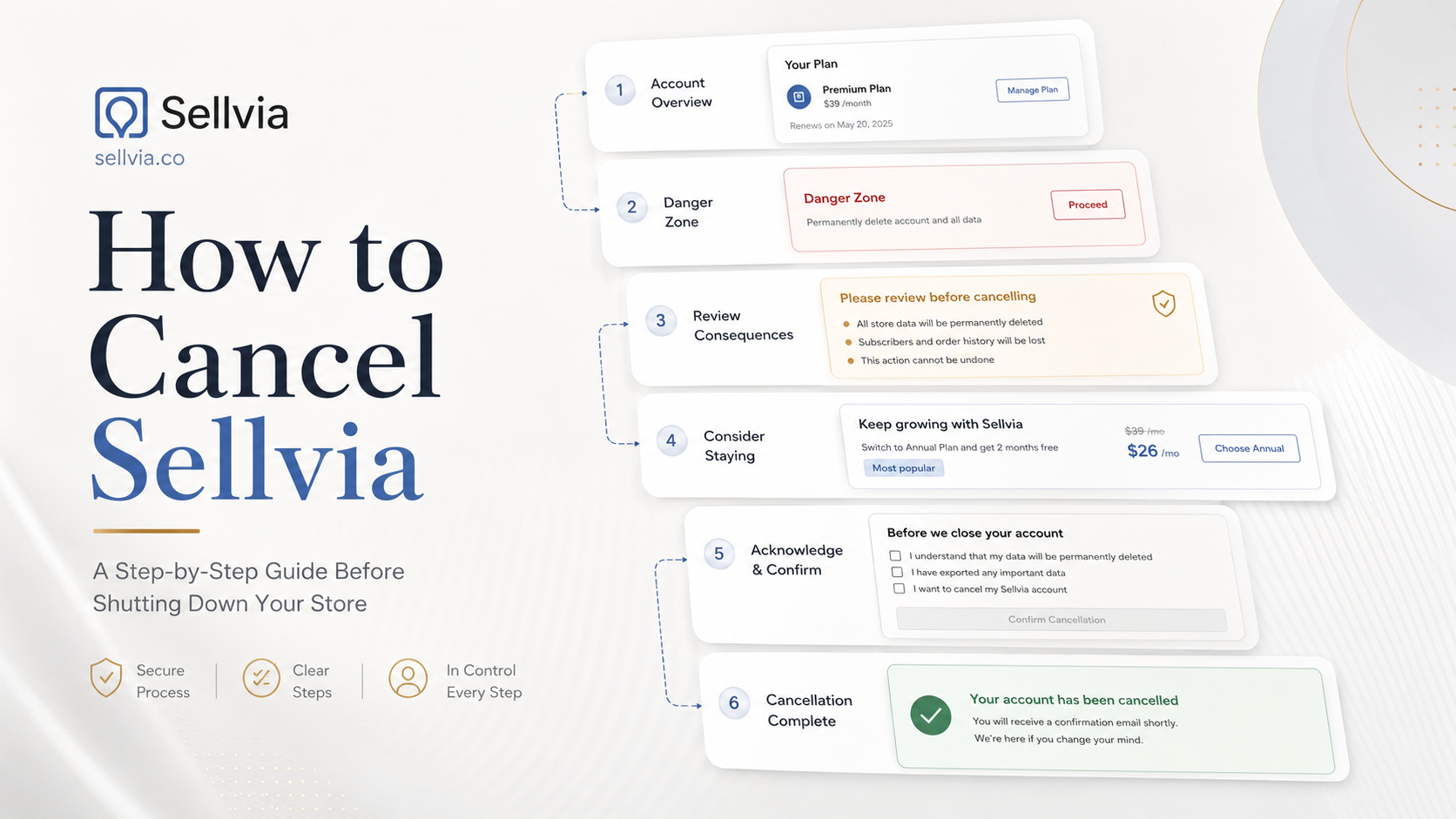
I went into this expecting one confirmation box. What I found in the Sellvia Dashboard on July 27, 2026 was a longer sequence: a warning screen with account-specific numbers, two rounds of subscription offers, a page of service add-ons, a balance-credit screen, a reason selector with two required checkboxes, and only then a final button. This article on how to cancel Sellvia walks through every one of those stages in the order I encountered them, starting at My Account → Plans → Danger Zone, and ending with a green confirmation that read, plainly, that the subscription was canceled.
I’m Robert Gross, and I document the Sellvia interface for this site — subscriptions, billing, dashboard mechanics, the things people need to see clearly before they click something they can’t undo. This particular walkthrough came from a real account tied to a store called topofferingclub.shop. I’ll flag anywhere the figures I saw are specific to that one account rather than universal to every Sellvia user.
How This Sellvia Cancellation Guide Was Documented
Before getting into the stages themselves, here’s exactly what this account showed, recorded as it appeared on the day of the review.
| Verification item | Documented result |
|---|---|
| Review date | July 27, 2026 |
| Account type | Active Sellvia business account |
| Selected store | topofferingclub.shop |
| Main subscription | Sellvia Pro |
| Main subscription price | $39 per month |
| Main subscription status | Trialing |
| Performance Tier | Elite |
| Tier price | $99 per week |
| Tier status | Active |
| Catalog size displayed | 63 products |
| Store value displayed | $32 |
| Account balance displayed | $0 |
| Orders awaiting processing during initial review | 3 |
| Starting point | My Account → Plans → Danger Zone |
| Starting action | Shut down my business |
| Final action | Finish cancellation |
| Cancellation completed | Yes |
| Dashboard confirmation | “Your subscription is now canceled.” |
| Email confirmation | “Your Sellvia Pro Subscription is cancelled” |
| Separate email confirmation verified | Yes |
| Support contacted | No |

A few things are worth stating plainly before moving on. Every dollar figure and product count above belongs to one specific account, on one specific day. The retention offers and account values shown during this test were specific to the reviewed store and may differ for other Sellvia accounts. What this article documents is the sequence of screens presented in the tested account on July 27, 2026.
It’s also worth being upfront about the limits of the evidence. The green dashboard screen confirmed that Sellvia recorded the subscription as canceled. A separate Sellvia-branded email then stated that the cancellation had been confirmed, the store and all of its data had been deleted, and the $39 subscription fee would no longer be charged to the formerly linked payment method. Neither record addressed the Elite Performance Tier or every possible add-on service, so those items still deserve a separate check.
Quick Answer: How to Cancel Sellvia
Quick answer: Canceling Sellvia means opening My Account → Plans, scrolling to the Danger Zone, and selecting Shut down my business. In the dashboard version documented during this test, I did not encounter a separate unsubscribe toggle. Sellvia then displayed several retention and confirmation stages before the final dashboard message confirmed the subscription was canceled.
Step by step, this is the order the flow followed:
- Sign in to the Sellvia account tied to the store you want to close.
- Confirm you’ve selected the correct store if the account manages more than one.
- Open My Account.
- Click Plans.
- Note the current Sellvia Pro status and active Performance Tier before doing anything else.
- Scroll to the bottom of the page to the Danger Zone.
- Select Shut down my business.
- Read the first warning screen — it lists what the account stands to lose.
- Select Continue to cancel.
- Review the subscription discount offers, and either accept one or decline both.
- Continue past the additional services and assistance page.
- Review the balance-credit offer.
- Select Continue to cancel again.
- Choose a reason from the dropdown.
- Check the required acknowledgment boxes.
- Select Finish cancellation.
- Save the dashboard screen that reads “Your subscription is now canceled,” then save the confirmation email when it arrives.
- Separately check Billing, the Performance Tier, and any add-on services afterward.
The number of offer screens and the exact wording may shift over time as Sellvia updates the flow, so treat the sequence above as what was current on the date of this review rather than a permanent fixture of the interface.
Where the Sellvia Cancellation Process Begins
The cancel option isn’t sitting next to the subscription price or bundled into a settings toggle. It’s placed at My Account → Plans, and specifically at the bottom of that page, inside a section labeled Danger Zone. That’s a deliberate bit of layout — separating a destructive, irreversible action from routine plan management so it isn’t something a person bumps into by accident while adjusting billing details.
Sellvia also publishes an official cancellation guide. That public page still describes an older three-dot Options route, while the dashboard documented here used Plans → Danger Zone → Shut down my business. This is why the controls visible in the current account should take priority over an older help-page screenshot.
Before reaching the Danger Zone, the Plans page itself is worth reading carefully, because it’s the last place the current subscription setup is laid out clearly. In the account reviewed here, that meant Sellvia Pro at $39 per month showing a Trialing status, and separately, an Elite Performance Tier at $99 per week showing as Active. Those are two different billing items sitting on the same page, and it’s easy to assume canceling one automatically resolves the other. Nothing in the flow that followed showed the Elite Tier being addressed directly — a point worth returning to later in this guide.
For a separate explanation of the monthly plan and weekly tier shown on this screen, read our Sellvia pricing and Performance Tiers guide.
Inside the Danger Zone, the link is labeled Shut down my business, accompanied by a preliminary warning that the store will be permanently deleted, that access to business data and progress will be lost, and that the action can’t be undone. That’s strong language, and it’s the first of several places in this flow where the wording shifts — from “shut down my business” here, to “cancel your subscription” a screen later, to “subscription is now canceled” at the very end. More on that shift below.

The First Sellvia Cancellation Warning
Clicking through from the Danger Zone leads to a page headed “Are you sure you want to cancel your Sellvia subscription?” This is where the account-specific numbers start showing up, laid out as a list of things that will no longer be available:
- No more access to the store at topofferingclub.shop
- No ability to sell the store, currently valued at $32.00
- Loss of the $0 account balance
- No ability to sell the 63 products already in the catalog
- A statement that canceling would prevent earning “up to $10,000/month” with the business
That last line deserves a direct callout. It’s a promotional statement built into the interface — not a documented result from this account, and not something to read as a guaranteed or typical outcome. I’m recording it here as interface language, the same way I’d note any other marketing copy that appears on a page, not as evidence of what any particular store actually earns.
Two buttons sit at the bottom of this screen: Keep my store active, which exits the flow entirely, and Continue to cancel, which moves forward. Both the store value and balance figures shown here are specific to the account under review — a store with more sales history, more products, or an accumulated balance would show different numbers on this same screen.

Sellvia’s $29 and $1 Retention Offers
Continuing past the warning brings up a page titled “Want to save money on your subscription” with three side-by-side cards.
| Option | Displayed price | Displayed saving | Included items | What to verify |
|---|---|---|---|---|
| Three-month offer | $29 | $199 | Subscription plus 100 USA Best Sellers | What renewal price applies once the three months end |
| One-month offer | $1 | $38 | One month of subscription access | The next billing date after the discounted month |
| Continue cancellation | — | — | No continued subscription access | The consequences already outlined on the prior screen |
Neither offer is billed as free. The $1 option is a one-month reduced rate, not a giveaway, and neither card in this account’s view stated what price would apply once the discounted period ended. That’s a detail worth reading closely before clicking Accept offer on either card — the renewal terms live somewhere in the billing documentation or the account’s own upcoming-charges view, not on this page itself.
It’s also worth noting these are retention offers shown specifically to an account already partway through cancellation. There’s no indication every Sellvia account sees identical pricing here, and the offer contents (which product bundle, which discount) could reasonably change over time or vary by account history. Declining both and selecting Continue to cancel moved the flow forward without friction — there was no repeated prompt insisting on a choice.
A discounted retention screen changes the immediate price, but it does not replace the need to understand the full operating budget. Our guide to realistic Sellvia costs separates the base subscription from weekly tiers, advertising, processing, and payout-related expenses.

Additional Sellvia Services Offered During Cancellation
The next screen shifted away from subscription pricing toward a set of service add-ons, presented as cards rather than a discount table. The ones shown in this account covered social media content creation (described as reaching a large Facebook, Instagram, and Pinterest audience with a set number of posts and a defined audience-size cap), Automated Email Marketing (a set number of promo emails and a multi-week campaign), and an Instagram & TikTok Store add-on. Each card listed a “Get now for FREE” button alongside a stated dollar saving, plus a separate “Contact us” link. A final card on the same page offered a free consultation with a growth-manager-style contact point.
I’m not going to turn this into a review of those individual services — that’s a separate topic from cancellation. What matters for this guide is that they appear here, mid-cancellation, as another point at which the flow offers an alternative to continuing. The “free” framing on these cards applied to the specific offer shown, not to an open-ended guarantee that the services carry no future cost in every circumstance. Anyone considering one of these should read the specific terms attached to it rather than assuming the card summary is the complete picture. The page still carried the same two buttons at the bottom — Keep my store active and Continue to cancel — so declining the service offers didn’t require any extra step beyond continuing forward.

How Sellvia Used the Account Balance as an Alternative
The next screen asked directly: “Did you know you still have $0 in your store account balance?” followed by an offer to use that balance as a credit instead of losing it — framed as “0 months of FREE Sellvia subscription.”
Because the account balance was $0, the resulting offer calculated to zero: $0, a stated saving of $0, and the same Accept offer / Continue to cancel choice as before. This balance-based step appeared in the tested cancellation flow. The figures shown may differ when an account has a positive balance, but that scenario was not part of this review.
The cancellation screen uses a single store-balance figure, while the normal account workflow may show different balance or commission stages. For the wider sequence from orders through balance status and payout eligibility, see how Sellvia works from setup to payout.

The Final Sellvia Cancellation Form
Past the balance screen, the flow reached a page headed “Let us help before it’s too late!” This is the last stop before the account can actually be canceled, and it combines three elements.
First, a dropdown labeled “Please select the reason,” asking what’s holding the user back. Second, a section labeled “Still want to cancel?” with a short line acknowledging the decision, followed by two checkboxes that had to be selected before the final button became active:
“I understand that I lose $0 accumulated in my store account.”
“I understand that I lose my current business value of $32.00 and the opportunity to resell my store.”
Both checkboxes restate figures from earlier in the flow — the $0 balance and the $32 store value — this time as explicit acknowledgments rather than warnings. That’s a deliberate design choice: requiring the user to check a box next to a specific dollar figure is a stronger confirmation step than a generic “are you sure” prompt, and it reduces the odds that someone finishes this process by accident.
Below the checkboxes sat two buttons: Keep my store active and Finish cancellation, the latter grayed out until both boxes were checked.
The same page also included a collapsed FAQ section with six questions: what happens to the store, what else gets lost, whether the accumulated balance is lost, what the alternative to losing the balance is, whether a refund is available for the remaining subscription period, and whether it’s possible to speak with someone before canceling. Those questions were visible in the interface but their expanded answers weren’t part of what was documented here, so I’m not going to guess at or paraphrase content that wasn’t actually shown. Anyone who needs those specific answers should expand that FAQ directly inside their own account or check Sellvia’s official help documentation before finishing cancellation.

What the Successful Sellvia Confirmation Looks Like
Checking both boxes and selecting Finish cancellation led to a green confirmation screen with a checkmark icon and the line: “Your subscription is now canceled.” Below it, a short note read: “We’re sorry to see you go, and if you ever decide to start a new Sellvia store, you are always welcome to do it here,” with a Continue button beneath.
This screen is the clearest piece of evidence in the entire flow — it’s a direct dashboard statement that the cancellation action was processed. It’s worth saving a screenshot of this exact screen, along with the date and time it appeared, since it’s the strongest record available that the process was completed from this side of the account.
The dashboard screen did not mention a refund or the status of the Elite Performance Tier and add-on services. A separate Sellvia-branded email arrived afterward and stated that the cancellation had been confirmed, the store and all of its data had been deleted, and the $39 subscription fee would no longer be charged to the formerly linked payment method. The email still did not mention Elite or every additional service, so those items remain worth checking separately.

The Sellvia Cancellation Email That Followed
A separate Sellvia-branded email arrived after the dashboard confirmation. Its headline read “Your Sellvia Pro Subscription is cancelled.” The message stated that the cancellation had been confirmed, the store and all of its data had been deleted, and the $39 subscription fee would no longer be charged to the formerly linked payment method.
This email provides a second written record outside the dashboard and gives clearer information about the tested store than the green success screen alone. It still does not address the Elite Performance Tier, separate add-on services, domain ownership, refunds, or any records Sellvia may retain for legal or accounting purposes.

What Sellvia Said the Account Would Lose
Pulling together what appeared across the warning screens into one table:
| Item displayed | Account-specific value | What was verified | Recommended preparation |
|---|---|---|---|
| Store access | topofferingclub.shop | Warning shown on-screen | Export anything needed before finishing |
| Store value | $32 | Value shown on-screen | Save a screenshot for records |
| Account balance | $0 | Value shown on-screen | Resolve any positive balance beforehand |
| Product catalog | 63 products | Count shown on-screen | Save catalog records if needed later |
| Dashboard access | General loss-of-access warning | Warning shown on-screen | Download reports before canceling |
| Orders and existing clients | Loss-of-access warning | Warning shown on-screen | Resolve open orders first |
Every figure in that middle column belongs to the one account reviewed here — a store with sales history, a larger catalog, or an unresolved balance would see different numbers in the same rows.
Sellvia Cancellation Versus Store Deletion
One thing worth untangling is how the wording shifts across the flow. The entry point in the Danger Zone is labeled Shut down my business, and its warning talks about permanent store deletion and lost business data. Partway through, the language switches to cancel your Sellvia subscription and Continue to cancel. The final screen confirms, specifically, that the subscription is now canceled.
The wording changes across the flow, but the follow-up email adds important clarification for the tested account. The dashboard confirmed that the subscription was canceled, while the email stated that the store and all of its data had been deleted and that the $39 subscription fee would no longer be charged to the formerly linked payment method. That still does not establish the status of Elite, separate add-ons, domain registration, or every record Sellvia may be legally required to retain.
The current official Sellvia Terms of Use describe cancellation, the associated turnkey store, commission access, Performance Tiers, and refund requests as related but distinct topics. For a non-cancellation overview of the underlying store, subscription, orders, and balance system, read how the Sellvia platform is structured.
Sellvia Cancellation Is Not a Refund Request
It’s worth being explicit that canceling a subscription and requesting a refund are two separate actions, even though the cancellation flow references dollar amounts throughout.
| Action | Purpose | Verified in this walkthrough? |
|---|---|---|
| Cancel Sellvia subscription | Record Sellvia Pro as canceled and stop the $39 subscription fee | Yes — dashboard confirmation plus the follow-up email |
| Shut down / delete the store | End store operation and remove store data | The follow-up email stated that the store and all of its data had been deleted |
| Request a refund | Recover a prior charge | No — not part of this flow |
| Withdraw an account balance | Remove available funds | No — the tested balance was $0 |
| Cancel the Elite Performance Tier | Stop tier-specific billing | Not addressed directly in this flow |
| Cancel additional services | Stop billing on any add-on services | Not addressed directly in this flow |
Nothing in the dashboard flow or follow-up email stated that a refund had been issued. Refund eligibility is a separate question. Before requesting one, check the cancellation and refund sections of the current Sellvia Terms of Use. Sellvia also summarizes the trial, cancellation, and refund framework in its official subscription overview. A refund request should be submitted separately to Sellvia support and documented in writing.
What to Check Before Canceling Sellvia
A short list worth going through before starting the Danger Zone flow:
- Confirm the correct store is selected, particularly on accounts managing more than one.
- Note the current Sellvia Pro status and renewal date.
- Note the active Performance Tier and its billing cycle.
- Check the account balance across Pending, Incoming, Available, and Risk Reserve categories if those apply to the account.
- Resolve any pending payout requests.
- Download or export invoices, order history, and product records that might be needed later.
- Note any active advertising campaigns and their remaining budget.
- Confirm which email address is registered to the account, since that’s likely where any confirmation would go.
Not every account will have all of these — a newer store, for instance, may not have a payout history or an active ad campaign — so treat this as a checklist to run through rather than a set of items guaranteed to apply.
Anyone who is still deciding whether cancellation is the right step may find it useful to compare the subscription with the full workflow first. Our complete Sellvia beginner workflow explains what remains operationally active before a store is closed.
What to Save Before Finishing the Cancellation
Given how many screens this flow passes through, it’s worth capturing evidence at each stage rather than only at the end:
- The Plans page showing subscription and tier status
- The first warning screen with store value, balance, and product count
- The retention offer screens, whether accepted or declined
- The service offer page
- The balance-credit screen
- The final form with the reason selected and both boxes checked
- The green confirmation screen itself
- Any invoices or order records relevant to the account
- The cancellation email received after the dashboard confirmation
Screenshots of each stage give a far more complete record than relying on memory of what was clicked, particularly if a billing question comes up weeks later.
What to Check After Sellvia Says the Subscription Is Canceled
Reaching the confirmation screen is a good stopping point for the cancellation action itself, but a few follow-up checks are worth doing separately rather than assuming they’re automatically resolved:
- Save the confirmation screenshot along with the date, time, and timezone.
- Check Billing directly, if it remains accessible, for any scheduled future charges.
- Check the Sellvia Pro status specifically to confirm it now reads as canceled rather than simply paused.
- Check the Elite Performance Tier separately, since nothing in this flow addressed it directly.
- Check any add-on services mentioned during the retention screens for their own billing status.
- Save the Sellvia confirmation email and verify that it names the correct store.
- Contact Sellvia support directly if any paid item still appears active after the confirmation.
What to Do If Sellvia Charges You After Cancellation
If a charge shows up after the confirmation screen, a measured approach works better than an immediate dispute:
- Locate the saved confirmation screenshot and note its timestamp.
- Compare that timestamp against the date of the new charge.
- Identify which billing line the charge belongs to — Sellvia Pro, the Elite Tier, or one of the add-on services.
- Check whether another store on the same account remains active.
- Review the account’s invoice history for context.
- Contact Sellvia support in writing, referencing the confirmation screenshot and the charge date.
- Ask specifically for clarification and, if warranted, a refund.
- Only escalate to the payment provider if support doesn’t resolve it directly.
Contacting Sellvia in writing first creates a documented opportunity to identify whether the charge came from Sellvia Pro, Elite, another store, or a separate service before involving the payment provider.
- Sellvia Terms of Use — subscription, cancellation, Performance Tiers, commission access, and refunds.
- Official Sellvia cancellation guide — public help-page instructions, which may lag behind the current dashboard layout.
- Official Sellvia subscription overview — trial, subscription, cancellation, and refund summary.
My Practical Assessment of the Sellvia Cancellation Process
A few observations after going through this end to end:
The starting point is clearly separated from routine settings — nobody stumbles into the Danger Zone while adjusting a plan. The warning screens front-load the actual consequences, including account-specific dollar figures, rather than a vague “are you sure” message. The retention offers, while numerous, didn’t block forward progress — declining each one simply moved to the next screen, and Continue to cancel was always available. The final acknowledgment checkboxes are a meaningful safeguard against accidental cancellation, since they require reading and confirming specific figures rather than a single generic click. The confirmation screen at the end is unambiguous.
On the other side, the process took noticeably longer than a single unsubscribe toggle, and separate account elements — the Elite Performance Tier and the add-on services shown mid-flow — weren’t explicitly addressed by the final confirmation, which means they’re worth checking independently rather than assumed as closed. The offers and figures shown throughout are account-specific, so what one store sees on these screens won’t necessarily match another.
Final Sellvia Cancellation Checklist
| Before starting | During cancellation | After confirmation |
|---|---|---|
| Confirm the correct store | Read each warning screen fully | Save the green confirmation screen |
| Note Sellvia Pro status and renewal date | Decide deliberately on each offer | Check Billing for scheduled charges |
| Note the active Performance Tier | Select an accurate cancellation reason | Verify the Performance Tier separately |
| Resolve any account balance | Check both required acknowledgments | Check any add-on services |
| Resolve open orders | Select Finish cancellation | Monitor for unexpected charges |
| Export needed records | — | Contact support if anything remains active |
Sellvia Cancellation FAQ
How do I cancel Sellvia?
Open My Account, select Plans, and scroll to the Danger Zone at the bottom of the page. Selecting Shut down my business starts a multi-stage flow with warnings, retention offers, a reason selector, and required acknowledgments. The tested subscription was recorded as canceled when the dashboard displayed the green confirmation screen, and a separate email then confirmed that the selected store was closed.
Where is the Sellvia cancel button?
The cancellation entry is not placed beside the main subscription card. It appears inside the Danger Zone at the bottom of the Plans page under the label Shut down my business. The final Finish cancellation button appears later, after the warning, offer, reason, and acknowledgment stages.
How many steps does Sellvia cancellation take?
In the account reviewed here, the flow ran through roughly six distinct screens: the Danger Zone entry point, an initial warning, subscription discount offers, a service offer page, a balance-credit screen, and a final reason-and-acknowledgment form before the confirmation. The exact number of screens could change as Sellvia updates the interface.
Does Sellvia offer a discount when you try to cancel?
In the account reviewed on July 27, 2026, yes. Sellvia displayed a three-month offer for $29 and a one-month offer for $1. These were account-specific retention offers, so another user may see different pricing, different benefits, or no identical offer. Read the renewal terms before accepting any discounted continuation.
Can I decline the Sellvia retention offers?
Yes. Every offer screen in this flow included a Continue to cancel option alongside the discount or service offer, and declining didn’t add any extra confirmation step or delay.
Does canceling Sellvia delete the store?
The entry point warns about permanent store deletion, the dashboard confirms subscription cancellation, and the follow-up email states that the store and all of its data have been deleted. The email does not explain domain ownership, Elite billing, separate services, or any records Sellvia may retain for legal or accounting purposes, so those points should still be checked separately when relevant.
Will I lose my Sellvia account balance?
In the tested account, Sellvia displayed a warning that the shown $0 store account balance would be lost. Users with a positive balance should check its exact status, review the Payouts section, and request written clarification from Sellvia before completing cancellation.
Does canceling Sellvia also cancel the Elite Performance Tier?
Nothing in the flow documented here directly addressed the Performance Tier as a separate billing item. Since Sellvia Pro and the Performance Tier appeared as two distinct line items on the Plans page before cancellation, it’s worth checking the Tier’s status independently after the subscription cancellation is confirmed.
Can I get a Sellvia refund after cancellation?
The flow reviewed here didn’t mention or process a refund at any stage — it addressed subscription cancellation only. A refund request would need to be raised separately with Sellvia support, and any refund terms should be confirmed against current official policy rather than assumed.
How do I know my Sellvia subscription is canceled?
The dashboard displayed a green confirmation stating “Your subscription is now canceled.” A separate Sellvia-branded email then stated that the cancellation was confirmed, the store and all of its data had been deleted, and the $39 subscription fee would no longer be charged to the formerly linked payment method. Save both records and still verify any separate Performance Tier or add-on billing.
What should I save before canceling Sellvia?
Screenshots of the Plans page, the initial warning screen, each offer screen encountered, the final acknowledgment form, and the confirmation screen itself. Also worth saving separately: any invoices, order records, or product data tied to the store.
What should I do if Sellvia charges me after cancellation?
Start by comparing the charge date against the saved confirmation screenshot, then identify which billing line the charge belongs to — the main subscription, the Performance Tier, or an add-on service. Contact Sellvia support in writing with both dates before escalating to a payment provider.
Where This Leaves the Sellvia Cancellation Process
Canceling Sellvia is not a single click, but the documented process reached a clear conclusion. The path ran from the Danger Zone through warnings, discount and service offers, a balance-based alternative, and a final form requiring explicit acknowledgments. It ended with a dashboard confirmation that the subscription was canceled, followed by an email stating that the store and all of its data had been deleted and that the $39 subscription fee would no longer be charged. Separate billing items such as Elite and add-on services still deserve their own post-cancellation check.
For related research, compare the current Sellvia subscription and Performance Tier structure, the complete Sellvia cost breakdown, and the full workflow from setup to payout. Readers who need a broader platform definition can use our Sellvia platform explainer, while our evidence-based legitimacy and complaints review examines the company, dashboard, current terms, and recurring user concerns separately.

Robert Gross is a contributing writer at Sellvia.co with a strong interest in ecommerce operations and the economics behind digital selling platforms. His articles examine how Sellvia’s tools work together in real business scenarios, including store setup, advertising, order processing, performance tracking, and cash-flow planning. Robert focuses on the operational details that are often overlooked, helping readers form realistic expectations, recognize potential challenges, and approach online business decisions with greater clarity.


Leave a Reply